Connect Facebook and Instagram
What you’ll do: Give EBENEZER permission to post your sermon clips to your church’s Facebook Page and, through it, your Instagram — and get past the one permission screen that blocks publishing if you miss it.
About 10 minutes, once
Of the four platforms EBENEZER can post to, this is the one with an extra step that’s easy to miss. Miss it and Facebook still tells you it “connected successfully” — but EBENEZER won’t pretend: the settings card turns amber, “no Facebook Page found,” and any attempt to publish says the same. We know it matters because it cost us eleven days on our own account, with server access and full logs, before we built those warnings in.
The cause is almost always a single screen inside Facebook’s sign-in — the one about Businesses — that’s easy to click straight past. This guide walks you through all three screens in order, tells you what a correct one looks like, and shows you how to read the settings card afterwards so you can prove the connection worked rather than hope it did.
Read the Businesses part below even if you’ve connected Facebook apps before. It’s a recent change, it’s the step that’s easiest to miss, and it’s the whole reason this page exists.
They are one connection, not two
Instagram has no separate login here. EBENEZER reaches your Instagram through your Facebook Page, so connecting Facebook connects both at once. There’s one Connect button’s worth of work, not two, and a single connection sits behind both names — which matters later, when you go to disconnect.
Partway through the Facebook sign-in you’ll be asked which Instagram account to include. Tick your church’s and keep going — that’s the moment the two get linked, and it’s why the flow keeps naming both.
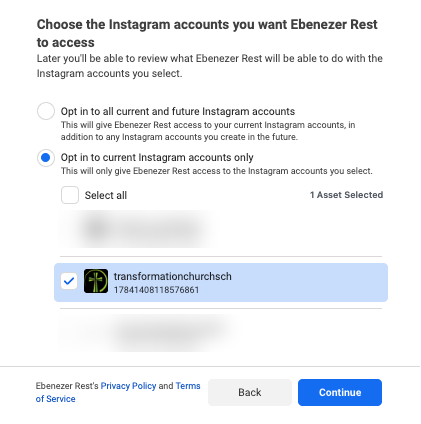
Before you start
- You must be an admin of the Facebook Page — not just an editor or contributor.
- Your Instagram must be a Business or Creator account, and it must be linked to that same Facebook Page inside Instagram’s own settings. A personal Instagram can’t be reached this way.
Facebook logins are personal — there is no separate “church” login to hunt for. Sign in with whichever account already administers your church’s Page, often your own and sometimes a staff member’s. If you’re not sure which account that is, check facebook.com/pages and see which one lists your Page.
The three screens that decide whether it works
Along with the Instagram step above, the Facebook sign-in walks you through a few asset screens. Three of them decide whether publishing will actually work: your Pages, your Businesses, and a final review. It’s easy to sail through the first, click past the second without understanding it, and press Done on the third without reading it. Here’s what each one needs.
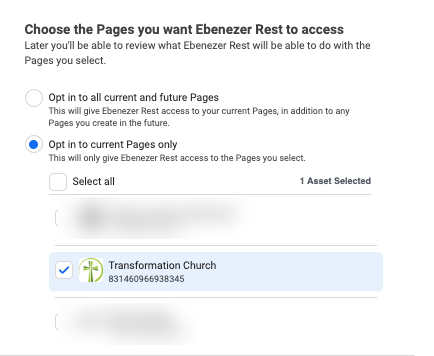
Screen 1 — Choose the Pages
Choose “Opt in to all current and future Pages.” It’s the simplest correct answer, and a Page you create later will still work without redoing any of this.
If you’d rather pick specific Pages, that’s fine — but your church’s Page has to be one of the ones you tick. If it isn’t ticked here, nothing later can fix it.
Screen 2 — Choose the Businesses
Skip past this one and EBENEZER will say it connected, show a green badge, and then publish nothing at all — no error, no warning. It’s exactly how Facebook posting fails without ever showing you an error.
Facebook now keeps most Pages inside something called a Business Portfolio, whether you set that up or not. If EBENEZER isn’t given access to the portfolio that owns your Page, it can see that you have a Page but can’t actually post to it.
Choose “Opt in to all current and future Businesses.” As on the Pages screen, this is the answer that keeps working if anything changes on Facebook’s side later.
Screen 3 — Review
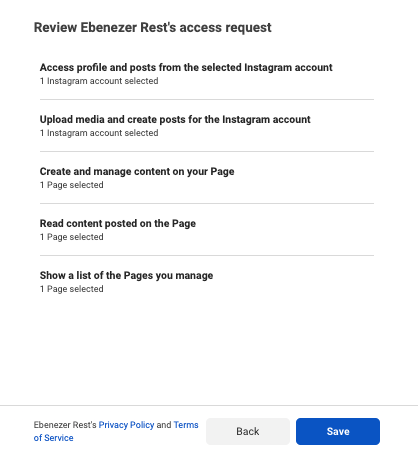
The last screen summarises what you’re granting. A correct one shows:
- At least one Business selected.
- Your Page selected under all three Page permissions — including the one worded “Show a list of the Pages you manage.”
If any of those is empty or switched off, press back and fix it before you finish. This screen is the last place you can catch a missed Business without starting the whole flow over.
How to know it actually worked
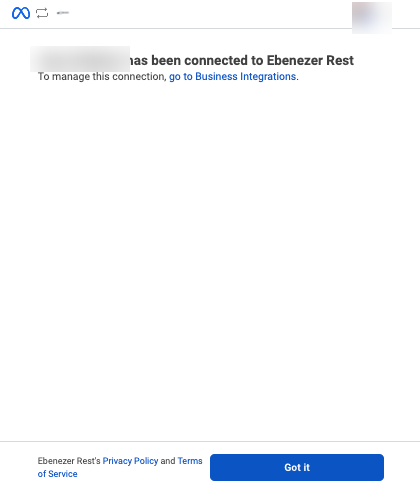
When you finish, Facebook shows a screen saying your Page “has been connected to Ebenezer Rest.” It’s reassuring — and it is not the confirmation that counts. All it means is that the sign-in completed; it says nothing about whether a Page actually came across.
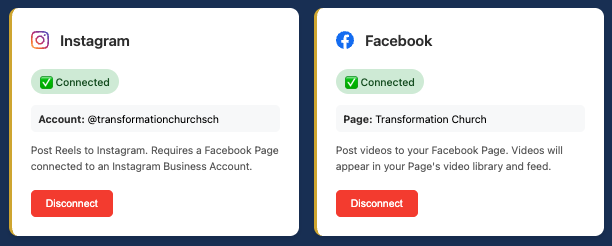
The real check is back in Settings → Social Media. The Facebook card should be green and show your Page’s name, and the Instagram card should be green too, showing your handle.
Not the “connected” screen above — that only means the sign-in completed, not that a Page was found. The proof is the Page name on the green card. Green with no Page name means it isn’t really connected; read the next section.
Connected, but nothing publishes
If Facebook posts fail, or the card is green but you’re not certain it’s right, it’s almost always the Business from Screen 2 that got missed. Here’s how to tell, and how to fix it.
The amber badge
If the card reads “⚠️ Connected — no Facebook Page found,” the sign-in worked but EBENEZER couldn’t see a Page — which means it wasn’t given the Business that owns it. Press Reconnect and, on Screen 2, select the Business.
If reconnecting seems to change nothing
When you press Reconnect, Facebook may offer Continue with your previous settings. Taking that shortcut replays the exact same incomplete grant and fixes nothing. Look for Edit settings instead — that’s what reopens the three screens so you can add the Business.
They share one connection, so pressing Disconnect on Facebook takes Instagram down with it — even if Instagram was working perfectly. If you’re only trying to fix Facebook, use Reconnect, not Disconnect, so you don’t lose a good Instagram connection along the way.