Review and approve clips
What you’ll do: Watch the short clips EBENEZER cut from your sermon, decide which ones are worth sharing, and publish them to your church’s social accounts.
About 15 minutes
Open the review page
- From the home screen, find your sermon in the Processed Sermons list. Finished sermons have a green tick and tell you how many clips were made.
- Press View Details.

The Review Content page opens on the CLIPS tab. Across the top you’ll see six tabs, one for each kind of content EBENEZER made from this sermon.

Watch and approve each clip
Every clip gets its own card showing how long it is, where in the sermon it came from, and which platforms it’s meant for.
- Press PLAY to watch the clip. It opens in a new tab.
- If you’re happy with it, press Approve. The card turns green.
- If you’re not, press Reject. Nothing is deleted — the clip is just left out.
- If a clip is nearly right but starts or ends in an awkward place, press EDIT to adjust exactly where it begins and ends.
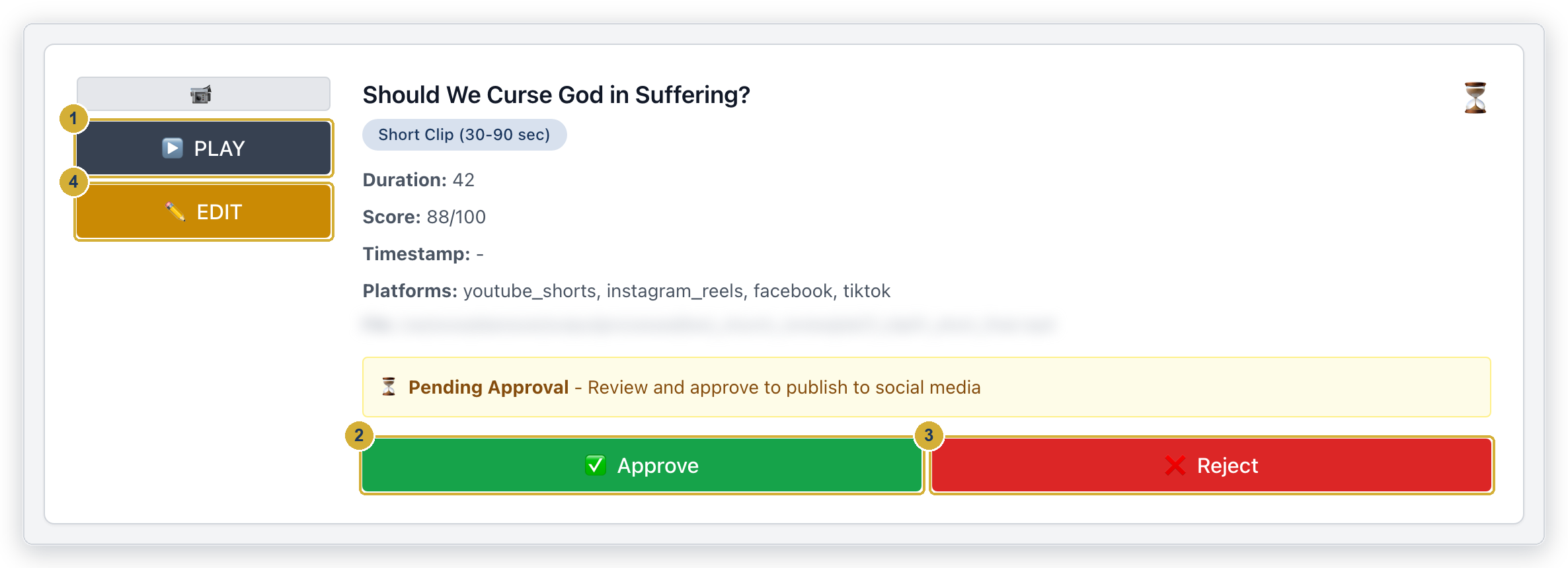
Each clip shows a score out of 100. That number only puts the clips in order — it is not a grade, and nothing was thrown away for scoring too low. A clip scoring 42 made the cut because it was among the best moments in that sermon. Watch it before you judge it by its number.
Changed your mind? Press Undo Approval or Undo Rejection on any card.
Choose where to publish, then publish
At the bottom of the page there’s a bar that stays put as you scroll. It counts your approvals and holds the publish button.
- Next to Publish to:, tick the platforms you want these clips to go to. All four start ticked, so untick any you don’t want.
- Press Publish Approved Clips and confirm.

Pressing publish puts these videos on your church’s real social accounts immediately. There’s no draft step and no undo inside EBENEZER — to take a YouTube video down you have to remove it yourself in YouTube Studio. Watch every clip before you approve it.
Things worth knowing before you publish
Long clips only go to YouTube
Clips marked Extended Clip (8-15 min) are sent to YouTube only, whatever else you tick. Instagram, Facebook and TikTok are built for short video, so the long ones are held back automatically. Your short clips still go everywhere you selected.
Long clips carry your church logo but no captions and no title card. Those two are added to short clips because short clips get watched with the sound off while somebody scrolls past. A long clip is chosen deliberately and watched properly, so it stays clean.
TikTok needs one more step from you
EBENEZER can put the video into your TikTok account, but TikTok doesn’t let outside apps post on your behalf. Your clip lands in your TikTok drafts without its caption. Open the TikTok app, add your words, and post it yourself.
Some clips may post and others fail
Each clip is sent to each platform separately, so a run can partly succeed. The message afterwards lists exactly what worked and what didn’t, platform by platform. If Instagram in particular takes a while, you may see a note saying it’s still working in the background — check the account in a few minutes before trying again, so you don’t post twice.
If Facebook fails while the others go through, the message will say why. A common one is “no Facebook Page was found,” which means the connection still needs its Page and Business step — see Connect Facebook and Instagram.
Everything else on this page
Below the publish bar is Publication History, a record of everything EBENEZER has posted for you, with links to each live post. It has a delete button, and what that button actually does varies by platform in a way worth understanding before you press it.
The other five tabs have their own guides: devotional texts, the newsletter, the blog post, Bible study guides and podcast episodes.
Clip won’t play, a tab looks empty, or a post didn’t appear where you expected? See the troubleshooting guide.