Send the newsletter
What you’ll do: Read the weekly email EBENEZER wrote from Sunday’s sermon, make it sound like your church, test it on yourself, and send it to your list.
About 10 minutes
Open it and read it
- From the home screen, press View Details on your sermon, then open the NEWSLETTER tab.
- If it says the newsletter hasn’t been generated yet, press Generate Newsletter and wait a moment. When it’s done you’ll see a green bar telling you how many words it wrote.
- Read the whole thing in the Newsletter Content box. Click anywhere inside it and type — it works like a plain document.
- Press Save Edits when you’re happy.
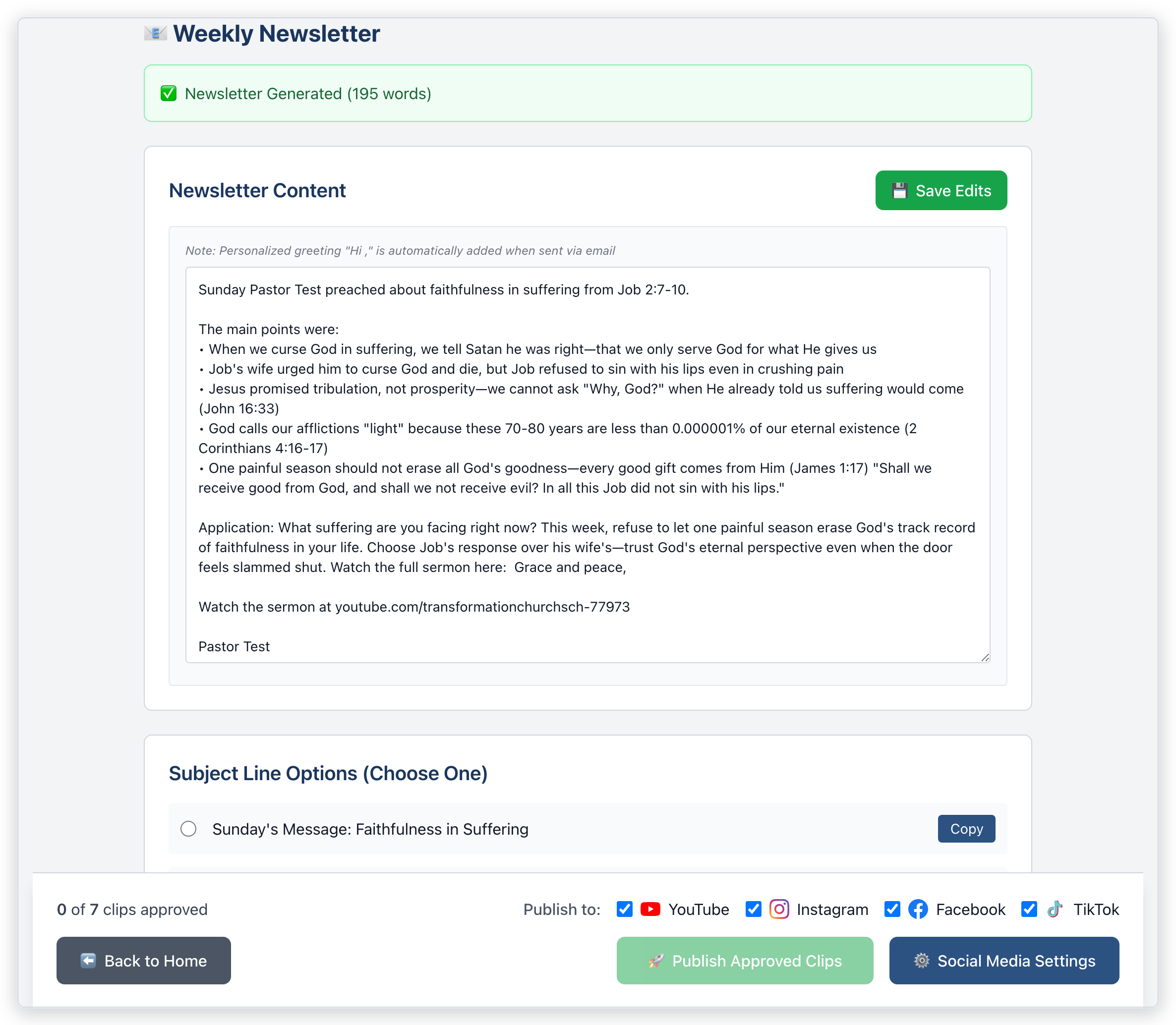
If you edit the text and switch to another tab without pressing Save Edits, your changes are lost. Pressing Regenerate also throws away anything you’ve written — it asks first.
EBENEZER adds one for you. Each person receives their copy opening with “Hi” and their own first name, so you can start straight into the content.
Pick a subject line
Below the text you’ll find a few suggested subject lines under Subject Line Options (Choose One). Click the round button beside the one you want and that becomes the subject of the email.
Most people decide whether to open an email from the subject alone. Pick the one that says something specific about Sunday rather than the one that sounds most like a newsletter. There’s also a Copy button beside each, if you’d rather reword it somewhere else.
Send a test to yourself first
Scroll to Send via Email. It tells you how many subscribers are ready to receive this newsletter.
- Check the subscriber count looks right. If it says you have none, you’ll need to add people to your list first — the send button stays greyed out until you do.
- Press Send Test Email to Me. It goes to the address you sign in with, and nobody else.
- Open your own inbox and read it properly — on your phone as well if you can, since that’s where most people will see it. If something’s wrong, fix the text, press Save Edits, and send yourself another test.
- When the test looks right, press Send to All Subscribers.
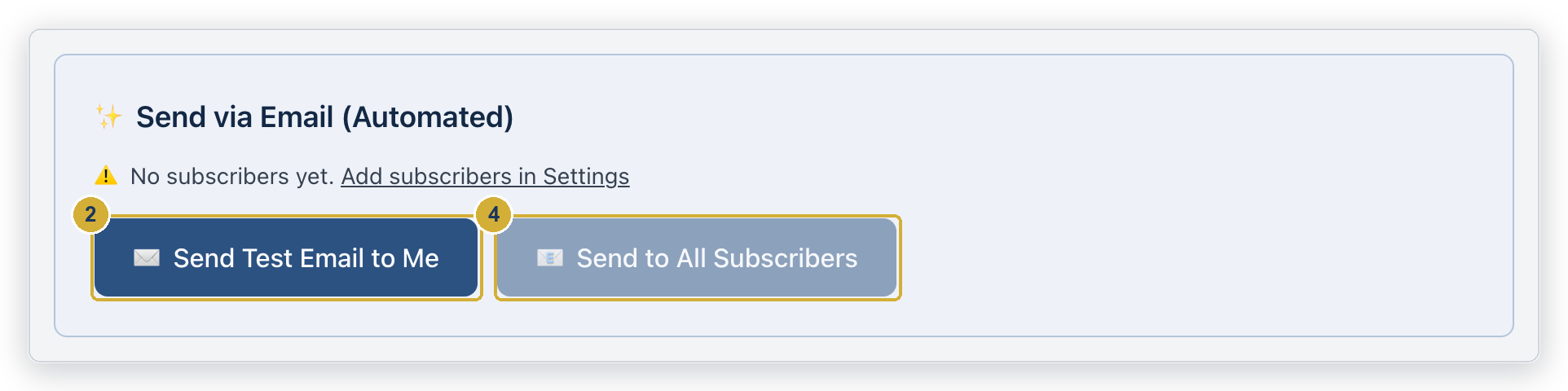
Send to All Subscribers goes to your entire list immediately. There is no scheduling, no draft, and no recall. The one minute it takes to read a test copy is the only protection you get, so take it every week.
Where the email comes from
Newsletters are sent by EBENEZER on your church’s behalf, from an address ending in @ebenezer.rest using your church’s name. You don’t need a mail service of your own and there’s nothing to configure — it’s handled for you.
Other ways to send it
If your church already sends email another way, you don’t have to use the built-in sending at all:
- Press Copy Newsletter Text to put the whole newsletter on your clipboard, then paste it into whatever you normally use.
- Use Copy beside whichever subject line you prefer.
Newsletter won’t generate, or your test email never arrived? Check your spam folder first, then see the troubleshooting guide.