Upload a sermon
What you’ll do: Put this week’s sermon video into EBENEZER and start it working on your clips and content.
About 10 minutes of your time, plus waiting while it works
Upload the video
- Sign in at app.ebenezer.rest and make sure you are on the home screen. If you have wandered off, press Home in the bar across the top.
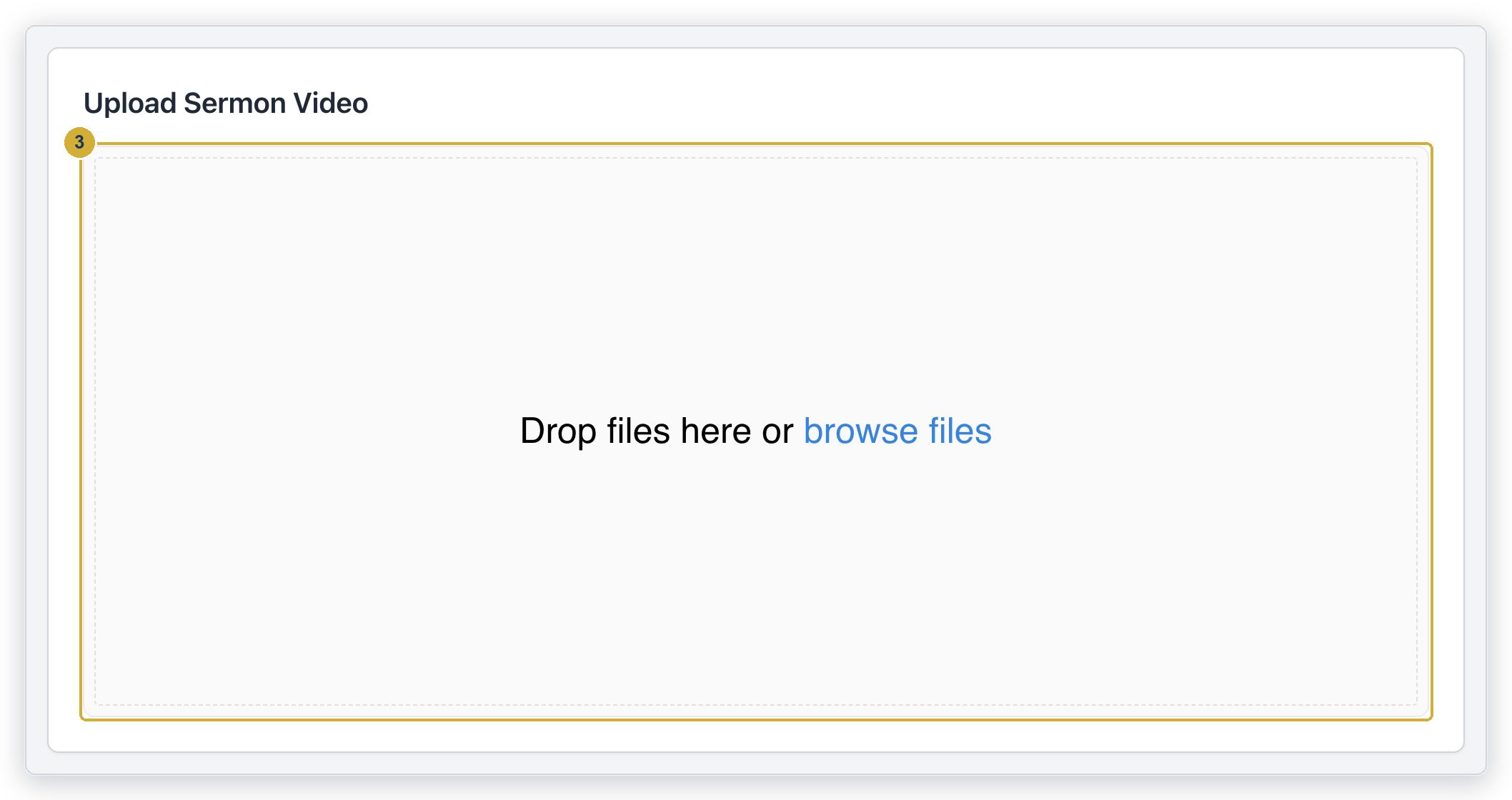
- Find the Upload Sermon Video panel near the top of the page.
- Choose your sermon video file from your computer, or drag it onto the panel. EBENEZER accepts the common video types — MP4, MOV, AVI, MKV and M4V — at sizes up to 5 GB, which comfortably covers a full-length service recording.
- Wait while the upload runs. A progress bar shows how much has been sent. On a slow connection a large file can take twenty minutes or more, which is normal.
- When it finishes you’ll see Upload complete! and EBENEZER will ask whether you want to process it now.
Don’t close your browser or let your computer go to sleep while the upload is still running, or you may have to start it over.
Start processing
- In the “Upload complete” message, press Process Now.
- The processing page opens and shows an overall progress bar, a list of the steps EBENEZER is working through, and a rough time remaining. A full sermon takes a while — this is a good moment for coffee.
- You can close the window. Processing keeps running on EBENEZER’s own servers, not on your computer. Come back and sign in whenever you like to check on it.
- When the page shows Processing complete, press View Results to see everything EBENEZER made. That’s the next guide.
EBENEZER listens to the whole sermon and writes out every word. That written copy is called a transcript, and everything else — the clips, the devotionals, the newsletter, the blog post — is built from it. That’s why the first step takes the longest.
If you’d rather process it later
Press Later instead and the video waits in the Not Processed list on your home screen. It stays there until you come back and press its Process button. Nothing expires.
If the upload seems stuck, or processing shows a failure message, the troubleshooting guide covers both.