Send devotional texts
What you’ll do: Polish the short devotional messages EBENEZER drew out of Sunday’s sermon, and schedule them to arrive on your congregation’s phones during the week.
About 10 minutes
These are the quietest thing EBENEZER makes and often the most felt. A few lines from Sunday, landing on a Wednesday morning while someone is getting the kids in the car. Short enough to read at a traffic light.
First, set your send days
Before you can schedule anything, EBENEZER needs to know which days of the week your church sends. You set this once, under Settings → Devotionals → Send Schedule.
- Choose one to three days a week.
- Set the time they should arrive.
- Check the timezone is yours.
- Press Save Schedule.
Each sermon produces three kinds of message: an opening one that recalls Sunday, a midweek one with something practical to do, and a closing one that’s a prayer or an encouragement into the weekend.
Send three days a week and your congregation gets all three. Send two days and they get the opening and the closing — the midweek one is left out so the week still has bookends. Send one day and they get the opening.
Choose and polish this week’s messages
- From the home screen, press View Details on your sermon, then open the DEVOTIONALS tab.
- If nothing’s there yet, press Generate Devotionals and give it a minute or two.
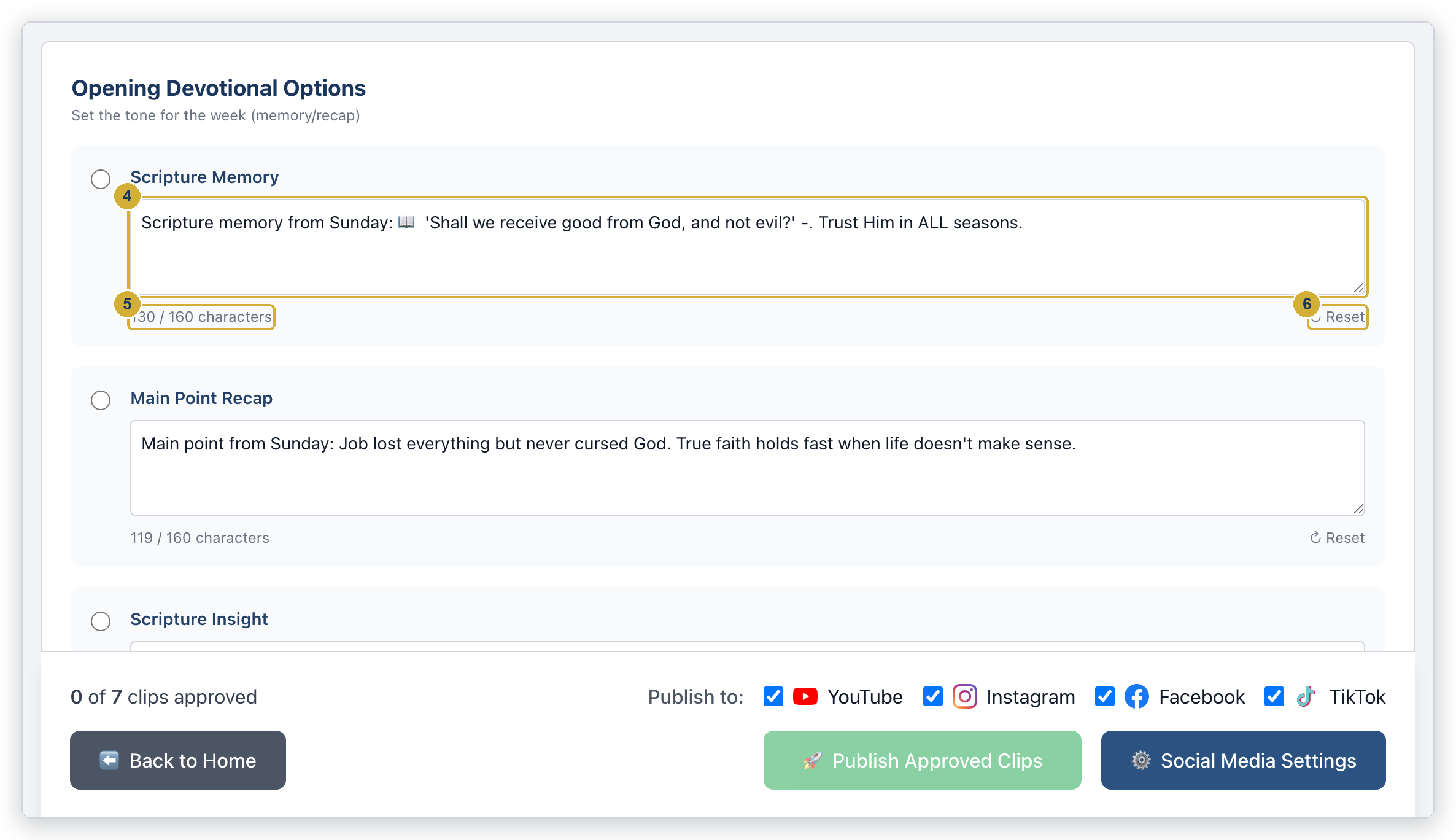
- You’ll see a section for each slot, and a few options inside each. Read them and click the round button beside the one you want to send.
- To reword it, click inside the message box and type. These are your people — make it sound like you.
- Keep an eye on the counter underneath. A text message holds 160 characters, and that counter tells you how close you are. Going over means the message arrives split in two.
- Rewrote it and preferred the original? Press Reset to put that message back the way EBENEZER wrote it.
- When all your chosen messages read the way you want, press Save Edits.
If you reword a message and move to another tab without pressing Save Edits, your wording is lost and the original comes back.
160 characters is one text message. Go past it and phone networks split it into two, which arrive separately, sometimes out of order, and cost twice as much to send. Shorter is also simply better here — nobody reads a wall of text on a lock screen.
Test it on your own phone
Scroll down to Send Options.
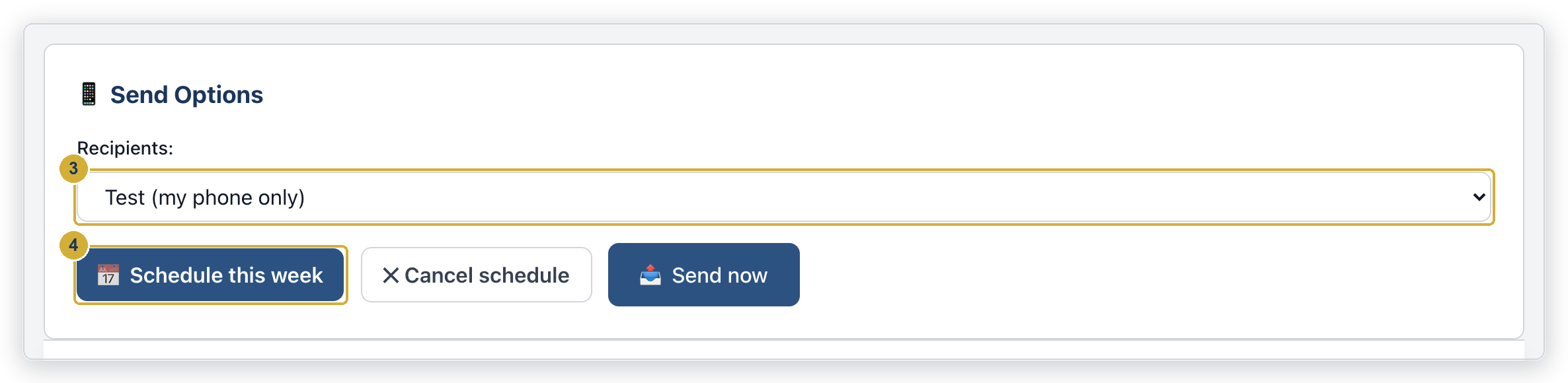
- Find the Recipients menu.
- Choose Test (my phone only) and press Send now. It goes to your phone and nobody else’s.
- Look at it on your actual phone. Read it the way someone glancing at a notification would. If it’s awkward, go back, fix it, save, and test again.
Schedule the week
Once you’re happy, arm the week and let EBENEZER handle the rest.
- Set Recipients to Subscribers.
- Press Schedule this week and confirm.
That’s it. Your chosen messages will go out on the days and at the time you set, without you touching anything else. You’ll see confirmation that the plan is armed.
Scheduling this week replaces whatever was scheduled before — there’s only ever one plan running, so last week’s messages can’t turn up alongside this week’s. Changed your mind entirely? Press Cancel schedule and nothing will send until you schedule again.
Sending one right now
If you want a message to go out immediately rather than on schedule — something happened in the life of your church and you want to say so — set Recipients to Subscribers and press Send now.
The difference between texting yourself and texting your entire congregation is one dropdown. A text cannot be recalled once sent. Look at that menu before you press send — every time, even when you’re sure.
Who receives these
Only people on your opted-in list. Adding and managing that list is covered in building your text message list — you can add people one at a time, import a spreadsheet, or sync from Planning Center.
Everyone on your list must have agreed to receive messages from your church. Never add someone who hasn’t asked, and never buy a list. Every message EBENEZER sends carries instructions to reply STOP, and anyone who does is removed automatically — you don’t need to do anything.
Devotionals won’t generate, or a text never arrived? See the troubleshooting guide.