Log in and look around
What you’ll do: Sign in and get your bearings on the home screen, so every other guide makes sense.
About 5 minutes
Sign in
- Open your browser and go to app.ebenezer.rest. Worth bookmarking — you’ll be back every week.
- Type your email address in the Email box.
- Type your password in the Password box.
- On your own computer, tick Remember Me so you stay signed in. Skip this on a shared church office machine.
- Press Login.
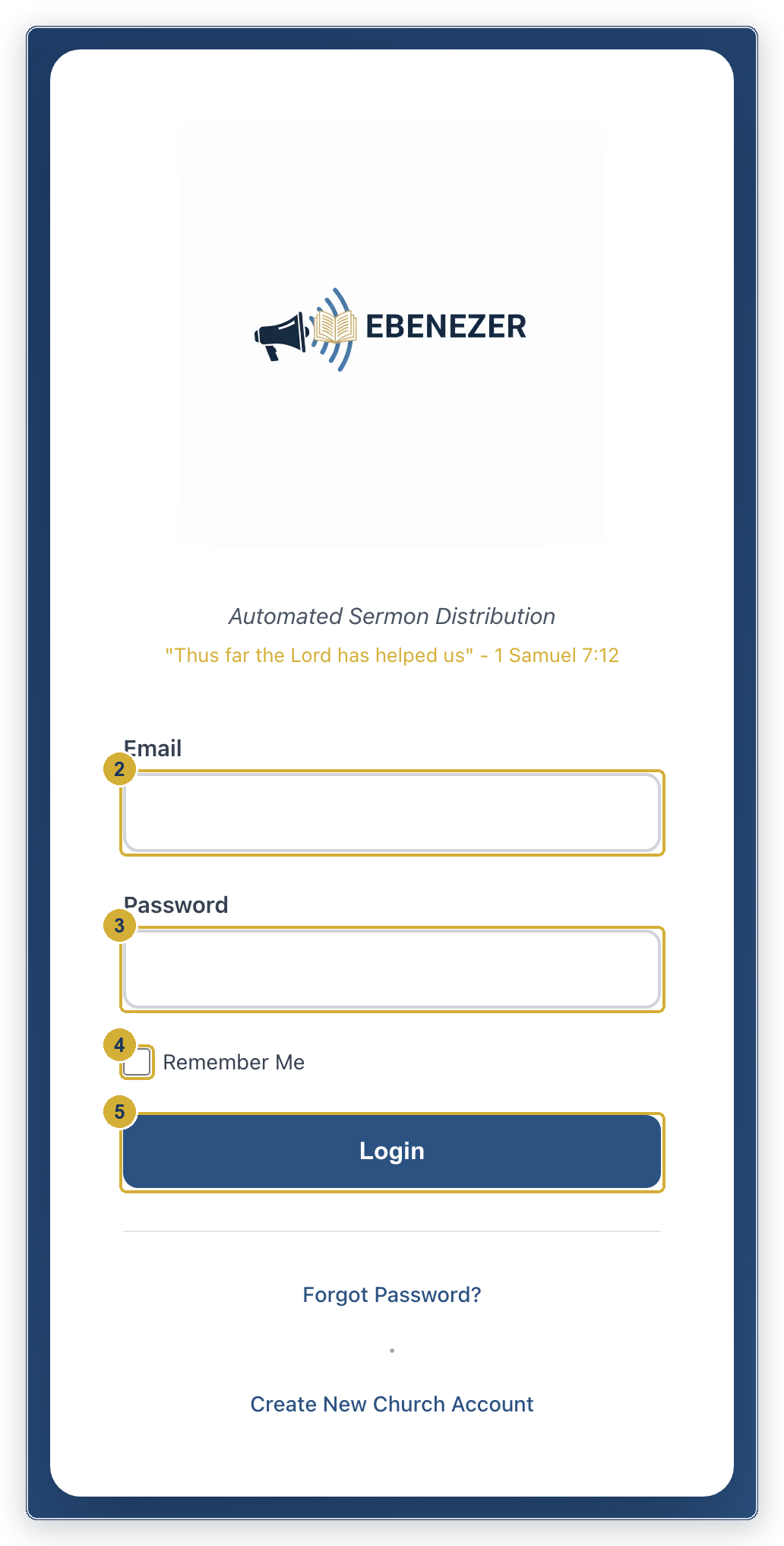
Press Forgot Password? underneath the boxes. Enter your email and EBENEZER sends you a link to choose a new one. The link works for one hour, so use it while you’re at your desk.
The home screen
Signing in lands you here. Four things to find — every other guide starts from one of them.
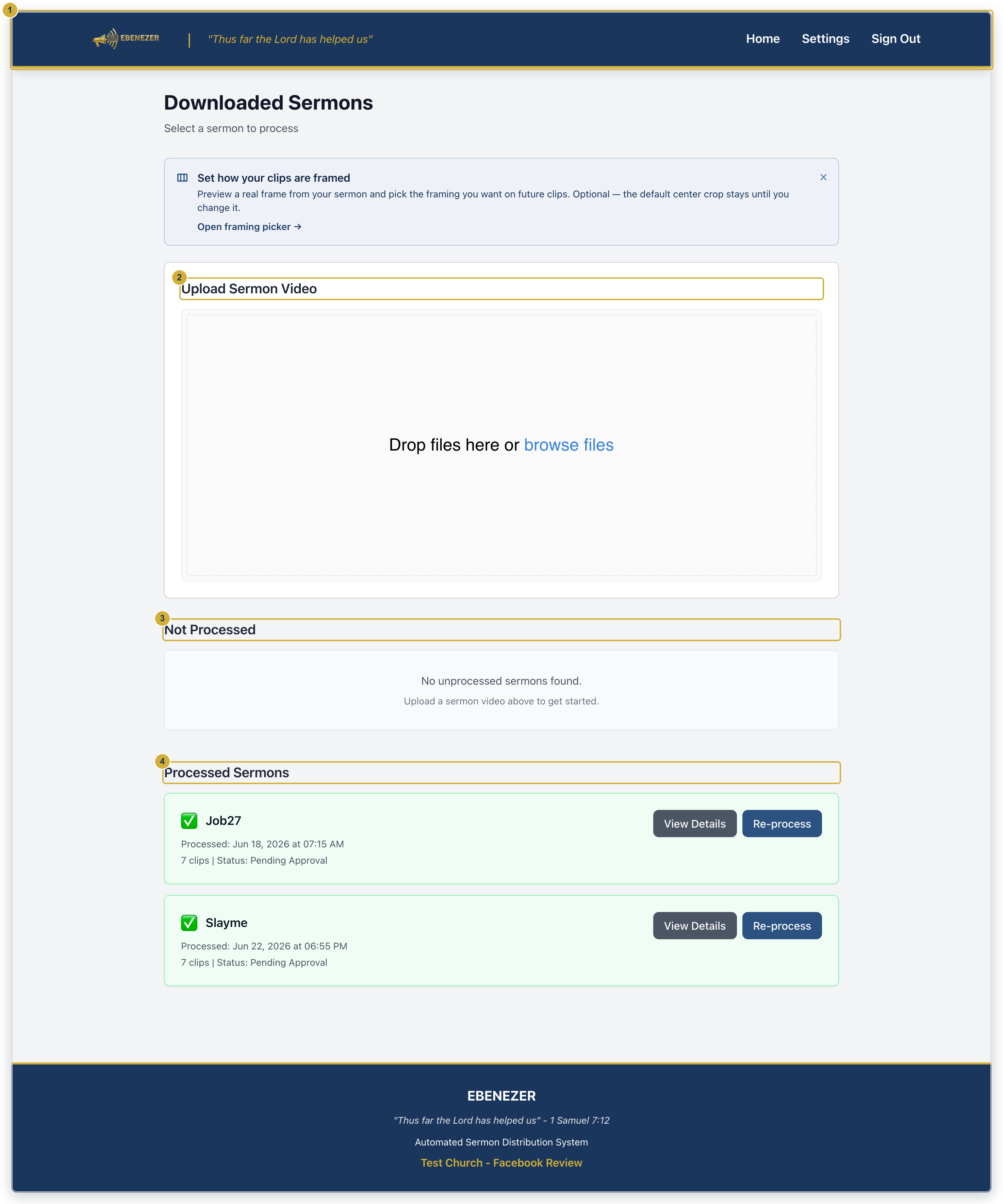
- The bar across the top. Home brings you back here from anywhere, Settings is where your church details and connections live, and Sign Out does what it says.
- Upload Sermon Video. Where each week starts. Drop Sunday’s recording here. See uploading a sermon.
- Not Processed. Videos you’ve uploaded but haven’t turned into content yet. They wait here indefinitely, each with a Process button.
- Processed Sermons. Finished ones, with a green tick and a clip count. View Details opens everything EBENEZER made from that sermon.
That’s normal on day one. You’ll see “No unprocessed sermons found” and “No processed sermons yet” until you upload something. The next guide fixes that.
Where everything else lives
Almost everything you do sits behind View Details on a processed sermon — that’s where the clips, devotionals, newsletter, blog post, Bible study and podcast episodes all are, on six tabs.
Everything you set once rather than weekly is under Settings: your church profile, social accounts, your subscriber lists, and billing.